Every companion you extract in Chapter 7 Season 4 stays in your locker permanently, but keeping track of which ones you own — and which you have mastered — gets complicated fast once Gold, Cheat Master, and Loot Hacker variants enter the picture. This guide walks through the full workflow: marking sprites, backing up your progress, and sharing a read-only snapshot with friends.
Marking sprites as Owned
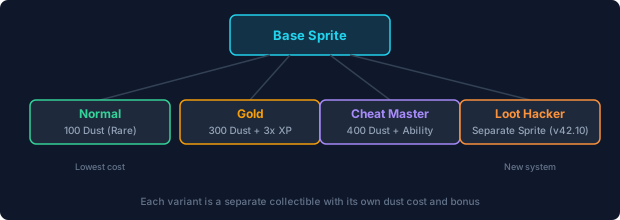
Scroll to the tracker grid on the home page. Each cell represents one sprite-variant pair — for example, "Bush Normal" and "Bush Gold" are separate cells. When you extract a sprite in a match and the extraction animation completes, find its cell and tap the "Mark Owned" button. The cell shifts to a highlighted state so you can see at a glance which companions are already in your locker.
If you extract a variant you have not seen before — say, a Gold Shadow from a chest — mark only that specific variant. The Normal variant stays unmarked until you extract it separately. This one-cell-per-variant approach means your tracker reflects exactly what is in your locker, not what you think you might have.
Marking sprites as Mastered
Mastery is a separate mark from ownership. A sprite becomes mastered when you take it to level 5 through regular play, then complete the extraction requirement. On the tracker, star the Mastered button only after both conditions are met. The two-status system exists because extracting a Gold Crown is not the same as mastering it — mastery means you have fully leveled the companion and unlocked its bonus.
Backing up your collection
All progress lives in your browser's localStorage. If you clear your browser data, switch computers, or want to move to a different device, export your collection as a JSON file. Open the share panel below the tracker, click "Export JSON," and save the file somewhere safe. To restore on a new device, open the same share panel and click "Import JSON" — your Owned and Mastered marks will be restored instantly.
Sharing with friends
The share panel also generates a read-only URL. Copy it and send it to a friend — they will see your Owned and Mastered marks in their browser without being able to edit them. This is useful for coordinating who has which sprites before a squad session, or for showing off a near-complete collection. The URL encodes only your checklist bits, not your Epic account or any personal data.